Jira 101: How to Use Jira Software for Agile Projects
Table of Contents
Agile project management has revolutionized how teams deliver projects, offering a flexible and iterative approach. One of the most prominent enablers of this methodology is Jira software, a powerful tool used by many teams worldwide to streamline project management. In this article, we will do Jira 101 learning and provide an overview of the core concepts of Jira, exploring its key features and demonstrating how to use Jira for Agile project management. By the end, you’ll have a comprehensive understanding of Jira and how to leverage it for your own projects.
What is Jira? #
Jira is a project management platform developed by Atlassian. Originally designed for bug tracking, it has evolved into a robust tool that supports Agile methodologies such as Scrum and Kanban. Software developers and other Jira users widely use it to manage projects, track progress, and ensure task completion.

Jira software allows teams to customize their workflows to fit their unique processes, ensuring that every step in the development cycle is accounted for. Its flexibility and extensive customization options make it a favorite among Agile teams. Jira is not just limited to software development; it is also used in various other industries for project management, making it a versatile tool.
What are the Key Features of Jira #
Jira software offers a range of features that make it a valuable tool for project management. These include:
Issue Tracking: Track bugs, tasks, and other work items. Jira’s issue tracking capabilities allow teams to log, manage, and track the progress of individual tasks. This feature is essential for maintaining transparency and ensuring accountability within the team.
Customizable Workflows: Tailor workflows to fit your team’s processes. Jira’s workflow customization allows teams to define their unique processes and stages for each project type, ensuring that all steps are followed consistently.
Reports and Dashboards: Use Jira’s reporting features to gain insights into project progress and performance. Teams can generate various reports and create custom dashboards to visualize project data and track performance metrics effectively.
Integration with Other Tools: Connect Jira with other tools in the Atlassian Marketplace. This includes integrations with tools like Confluence for content management and Bitbucket for code repositories, enhancing the overall functionality of your project management setup.
Agile Boards: Utilize Scrum boards and Kanban boards for visual project management. These boards provide a clear visual representation of tasks, allowing teams to track progress and manage workloads efficiently.
Getting Started with Jira #
To start using Jira software, you must first set up an account. Visit the Jira website and sign up for a free trial. Once registered, you’ll be guided through the initial setup process, which includes choosing a project type and configuring your workspace. The Jira interface is intuitive, with navigation menus that help you quickly understand where to find important features and settings.
After setting up your account, familiarize yourself with Jira’s core concepts, such as projects, issues, and workflows. These building blocks will form the foundation of your Jira usage. Additionally, explore the various menus and settings to customize your Jira environment according to your team’s needs. Understanding these basic elements will help you get the most out of Jira software and ensure a smooth project management experience.
Creating Jira Projects #
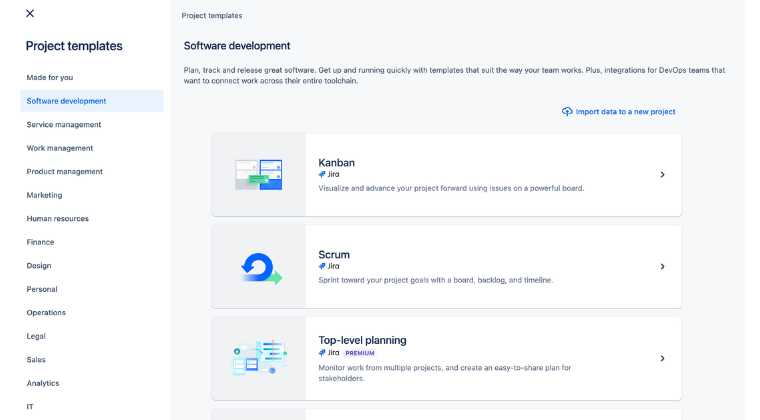
Creating a Jira project is extremely easy. Here’s a step-by-step guide:
Navigate to the Projects Menu: Click on the “Projects” menu and select “Create Project.”
Choose a Template: Select a template that suits your project needs, such as Scrum or Kanban.
Configure Settings: Enter the project name and project key, a unique identifier for your project.
Finalize Setup: Click “Create” to complete the setup.
Your first project is now ready, and you can start adding tasks and organizing your work. It’s important to select the right project type at this stage, as it will determine the structure and workflow of your project. Whether managing a software project, a marketing campaign, or a business process, Jira’s flexibility allows you to tailor your project to meet your specific needs.
Using Jira Backlog #
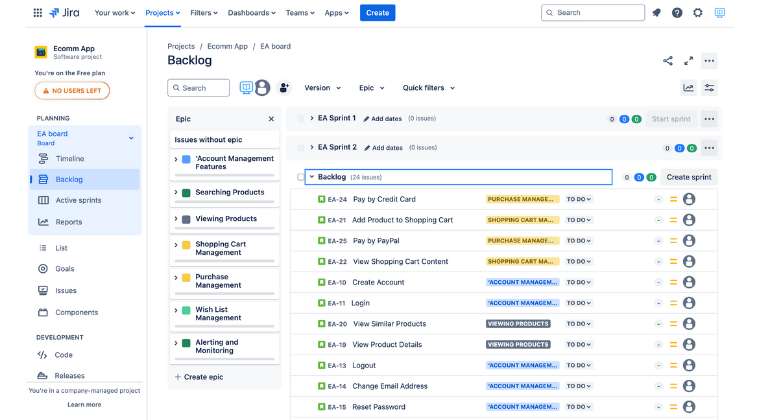
The backlog is a crucial feature in Agile project management. It is a list of tasks and issues that are supposed to be addressed in future sprints. In Jira software, managing the backlog is straightforward:
Add Issues: Create new issues and prioritize them. Adding issues to the backlog is the first step in organizing your work. Each issue can be detailed with descriptions, attachments, and other important details, ensuring all necessary information is available.
Organize Tasks: Drag and drop tasks to reorder them based on priority. Prioritizing tasks helps your team focus on the most important work items first, ensuring that high-priority issues are addressed promptly.
Regularly grooming the backlog ensures that it remains up-to-date and relevant, making it easier to plan and execute sprints. This process helps Agile teams stay organized and maintain a clear overview of what needs to be done, ultimately leading to more efficient project execution.
Creating and Managing Sprints in Jira #
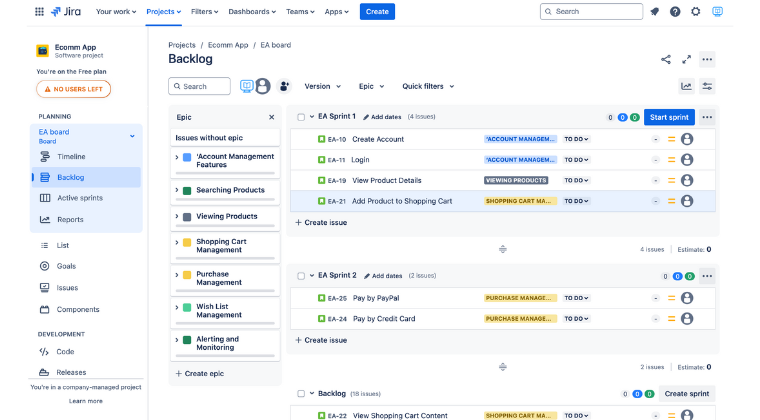
Sprints are time-boxed periods in which specific tasks are completed. Here’s how to create and manage sprints in Jira:
Create a Sprint: From your backlog, click “Create Sprint.”
Add Issues to the Sprint: Drag issues from the backlog into the sprint.
Start the Sprint: Click “Start Sprint” and set the duration and goals.
Track Progress: Use the Scrum board to track the status and completion of tasks throughout the sprint.
Managing sprints in Jira helps teams focus on specific tasks and track their progress towards sprint goals. The visual representation of tasks on the Scrum board allows teams to quickly see what’s in progress, what’s completed, and what needs attention. This visibility is crucial for maintaining momentum and ensuring the team stays aligned with sprint objectives.
Jira Issues and Workflows #
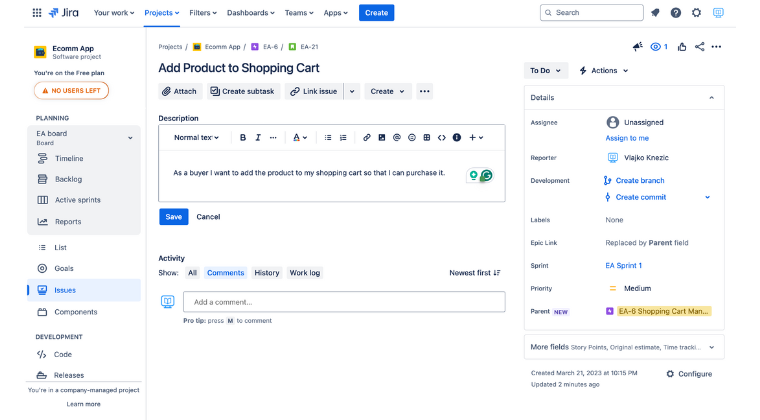
Jira issues are the building blocks of your projects. They can represent tasks, bugs, features, or any other work item. Managing Jira issues involves:
Creating Issues: Click “Create” and fill out the issue details. Each issue should have a type, such as a story, bug, task or epic, a clear title, description, and other relevant fields filled out to provide all necessary information for the assignees.
Customizing Workflows: Navigate to the “Issues” menu, select “Workflows,” and edit the steps and transitions. Custom workflows ensure that your processes are followed consistently and that each issue goes through the necessary stages before completion.
Tracking issues and updating their statuses as work progresses is essential for maintaining an accurate overview of your project’s status. Jira’s customizable workflows make it easy to adapt the tool to your team’s unique processes, ensuring that work flows smoothly from start to finish.
Boards in Jira #
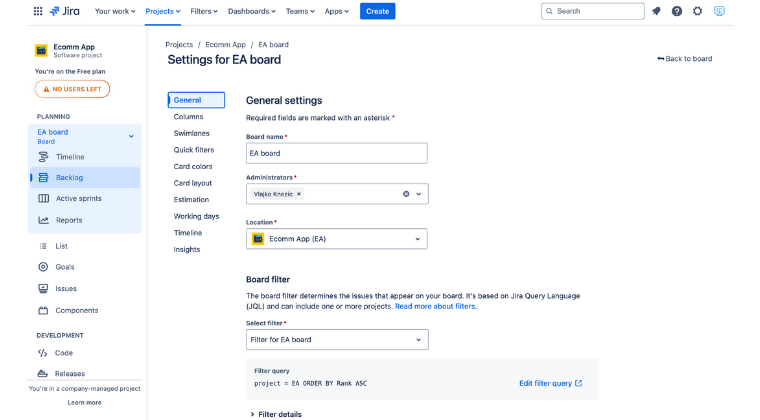
Jira boards are visual tools that help you manage and track your work. There are two main types of boards:
Scrum Board: Used by Agile teams to manage sprints and track progress. Scrum boards provide a visual representation of sprint tasks, making it easy to see what’s in progress, what’s completed, and what’s next.
Kanban Board: Focus on continuous delivery and visualize the flow of tasks. Kanban boards are ideal for teams that prioritize a steady flow of work rather than fixed sprints, allowing for more flexible and dynamic task management.
To set up a board:
Choose a Board Type: Select Scrum or Kanban based on your project needs.
Configure Board Settings: Customize the board layout, columns, and filters to match your workflow.
Use the Board: Add tasks, move them through columns, and monitor progress.
Boards provide a clear visual overview of your project, helping teams stay organized and focused on their tasks.
Automation in Jira #
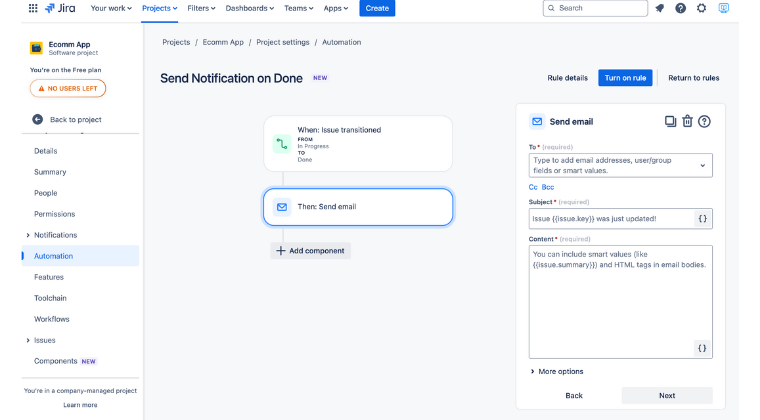
Automation in Jira helps streamline workflows and reduce manual effort. Setting up automation rules is simple:
Navigate to Automation Settings: Go to the “Automation” menu.
Create a Rule: Define the trigger, condition, and action for the automation.
Save and Activate: Save the rule and activate it.
Examples of useful automation rules include:
- Automatically assigning tasks to team members when an issue is created.
- Sending notifications when an issue status changes.
- Updating fields based on specific conditions.
Automation can significantly improve efficiency by reducing the need for manual intervention and ensuring that routine tasks are handled consistently. This allows teams to focus more on high-value activities and less on repetitive tasks.
Using Reports for Tracking Progress #
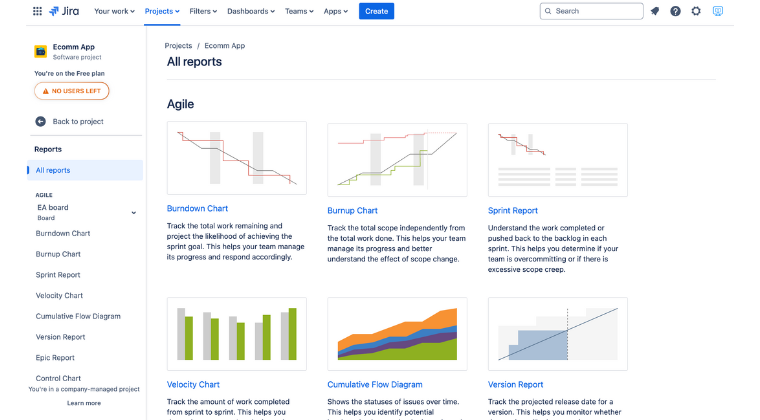
Tracking progress is vital in Agile project management. Jira software offers various reports and dashboards to help you monitor performance. Some of the most commonly used ones are:
Sprint Reports: Track the progress of current and past sprints. These reports provide insights into how well your team is performing against sprint goals and help identify areas for improvement.
Burn-Down Charts: Visualize work completed over time. Burn-down charts are essential for tracking the progress of a sprint and ensuring that the team stays on track to complete the work within the allotted time frame.
Besides built-in reports, Jira software allows you to create and customize dashboards to display key metrics and insights. Dashboards provide a central place to view important project data and track overall project health.
Using reports and dashboards helps teams stay informed about their progress and make data-driven decisions to improve their processes. Reviewing these reports regularly ensures that any issues or bottlenecks are identified and addressed promptly.
Integrating Jira with Other Tools #
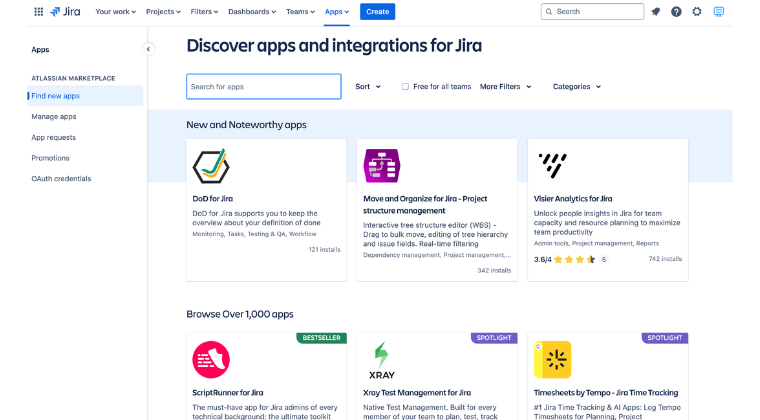
Jira integrates seamlessly with other tools, enhancing its functionality.
Atlassian Marketplace offers a wide range of plugins that extend Jira’s capabilities, from additional reporting tools to enhanced automation features.
Jira software integrates with other Atlassian tools, such as Confluence for content management or Bitbucket for code repositories. These integrations help streamline workflows and ensure that all necessary tools are connected and working together seamlessly.
Follow the setup guides for each integration to configure it in your Jira environment. Properly setting up integrations ensures that you can leverage Jira’s full power alongside other tools in your tech stack.
Integrations can greatly enhance the efficiency and effectiveness of your project management processes, providing a unified and streamlined experience across all tools and platforms.
Best Practices for Using Jira in Agile Projects #
Maximize the efficiency of Jira software with these best practices:
Regularly Update Issues: Keep issue statuses and details current. Regular updates ensure that the information in Jira is always accurate and up-to-date, helping teams make informed decisions.
Prioritize Backlog Items: Ensure the most important tasks are at the top of the backlog. Prioritizing tasks in the backlog helps teams focus on the highest-value work first, ensuring that critical tasks are completed on time.
Use Filters and Searches: Utilize basic search and advanced search to find issues quickly. Efficient searching helps teams quickly locate specific tasks and issues, saving time and reducing frustration.
Monitor Progress: Regularly check reports and dashboards to track progress. Continuous monitoring ensures that any issues or deviations from the plan are identified early and addressed promptly.
Avoid Complexity: Stay organized and avoid overcomplicating workflows. Keeping workflows simple and streamlined helps maintain efficiency and reduces the risk of errors or delays.
Implementing these best practices will help you get the most out of Jira and ensure that your Agile projects run smoothly and efficiently.
Advanced Jira Features #
For more experienced Jira users, advanced features offer enhanced functionality:
Advanced Workflows: Create complex workflows to match sophisticated processes. Advanced workflows can include multiple stages, conditions, and transitions, providing greater control over your project processes.
Custom Fields: Add custom fields to capture specific data. Custom fields allow you to tailor Jira to your unique needs, ensuring that all relevant information is captured and tracked.
Advanced Reporting: Use JQL (Jira Query Language) for customized reports. JQL enables you to create highly specific and detailed reports, providing deeper insights into your project data.
These advanced features provide greater flexibility and control, enabling you to handle more complex projects and workflows with ease.
FAQ Section #
What is Jira used for? #
Jira is a project management tool used primarily for Agile software development. It helps teams plan, track, and manage projects.
How do I create a project in Jira? #
To create a project in Jira, go to the “Projects” menu, select “Create Project,” choose a template, configure settings, and click “Create.”
What are the key features of Jira? #
Key features of Jira include issue tracking, project management, customizable workflows, reports and dashboards, and integrations with other tools.
How can I manage sprints in Jira? #
To manage sprints in Jira, create a sprint from your backlog, assign issues to the sprint, start the sprint, and track progress using the sprint board.
What is a Jira backlog? #
A Jira backlog is a list of tasks and issues that are prioritized and ready to be worked on in future sprints.
How do I customize workflows in Jira? #
To customize workflows in Jira, go to the “Issues” menu, select “Workflows,” choose the workflow you want to edit, and modify the steps and transitions as needed.
What are Jira boards? #
Jira boards are visual tools that help teams manage and track their work. There are different types of boards, like Scrum and Kanban.
Can I automate tasks in Jira? #
Yes, you can automate tasks in Jira by creating automation rules that trigger actions based on specific conditions.
Conclusion #
Jira is an indispensable tool for Agile project management, offering a range of features that help teams plan, track, and manage their work effectively. By understanding and utilizing Jira’s capabilities, you can enhance your team’s productivity and ensure the successful completion of your projects. Whether you’re a new user or an experienced project manager, this guide provides the insights needed to get the most out of Jira.